

"Says WiFi connected but no internet" is the most common WiFi complaint I get from renters, and almost none of them need a new router. My cousin Maya moved into a Brooklyn railroad apartment in October and hit it on her first morning. The first morning she texted me was a picture of her laptop, the WiFi bars showing full, and a Google search page that would not load. "It says wifi connected but no internet," she wrote, "and I've already reset the router twice."
That is the most common version of this problem. The router is working. The phone, the laptop, the TV — all of them show the little WiFi icon like nothing is wrong. Then you open a browser and the page either times out or loads nothing at all. People assume the router is broken and start unplugging things. Sometimes that helps. Most of the time it does not, because the real problem is not the router.
I walked Maya through it over the phone that morning and the fix turned out to be something she never would have guessed. Since then I've helped four other renters hit the same wall, and the steps below are the order I'd try them in if it happened to me again. None of them require calling the ISP. None of them require buying new equipment. The whole thing takes about twenty minutes if you don't get stuck.
A short note before the list: this is for the case where your device clearly shows it is connected to your home network — the right SSID, full bars, "Connected, secured." If your device says "No internet" right under the network name, that is a slightly different problem and the steps at the end will not help. For the "Connected, secured, nothing loads" symptom specifically, the order below is what I'd run.
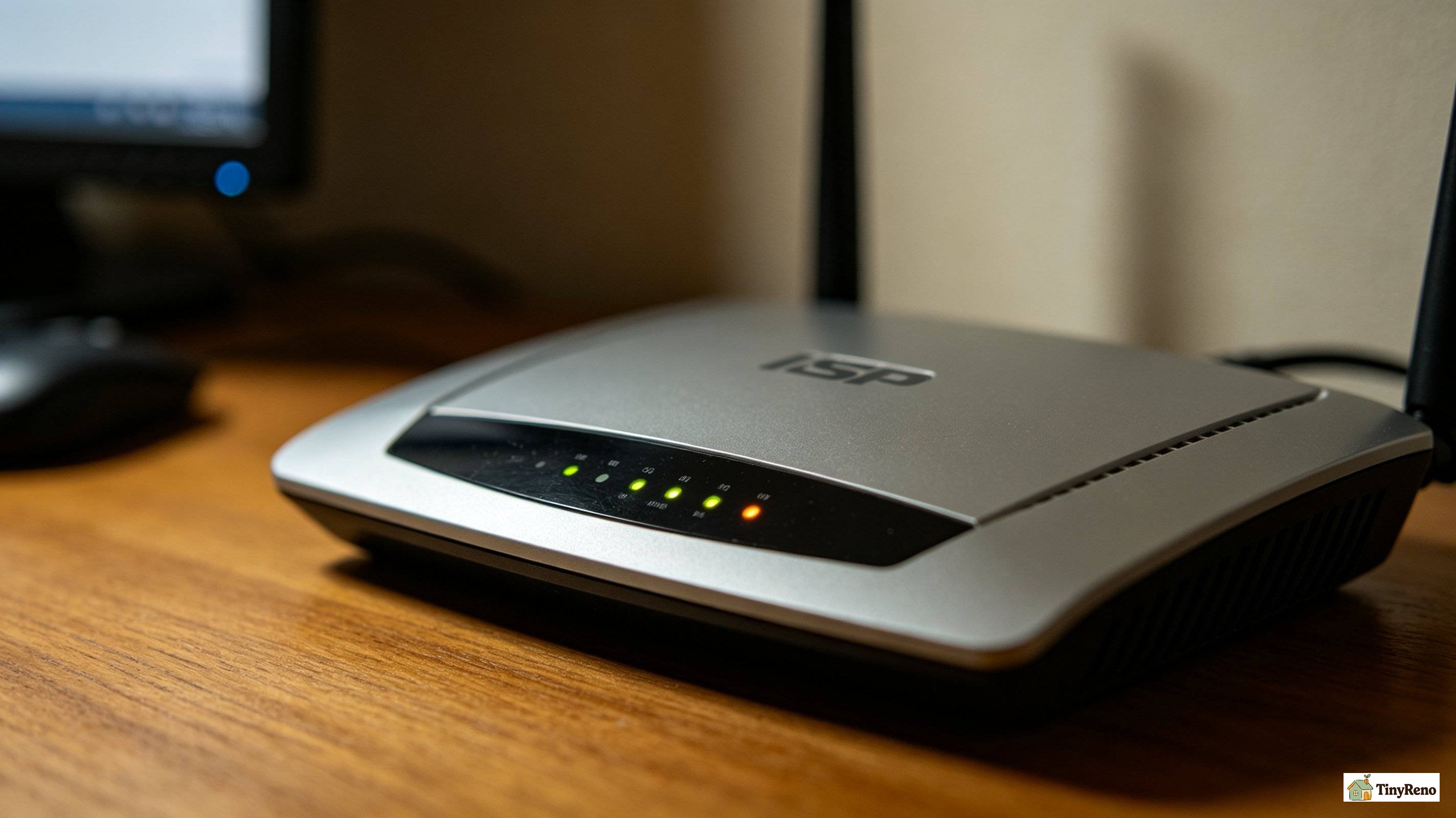
Step 1: Read the Router Lights Before You Unplug Anything
Sometimes the WiFi password stored on the device gets out of sync with what the router is now broadcasting. This happens a lot in rental apartments because the landlord may have reset the router, or the network name or password may have changed, and the device is still trying to authenticate with the old credentials. The connection says "Connected" because the device is sending a password and the router is accepting it, but the session is corrupt at a layer below the visible connection status.
If the internet light is off, blinking, or showing a color you have never seen before (often amber or red), the router is talking to your devices just fine but it is not getting a signal from the wall. That means the problem is upstream — between the router and the street — and nothing you do to the laptop will help. The fix is to call the ISP.
If the internet light is solid white or solid green, the router has a live connection to the ISP and the problem is downstream — between the router and your device. That is where the next steps come in.
Maya's internet light was solid green. So we moved on.
Step 2: Restart the Router the Right Way — Not by Unplugging It
The standard advice for any internet problem is "unplug the router, wait thirty seconds, plug it back in." People try this all the time. It sometimes works for "says WiFi connected but no internet" cases, but in my experience it is not the most reliable fix, because the actual problem often has nothing to do with power cycling.
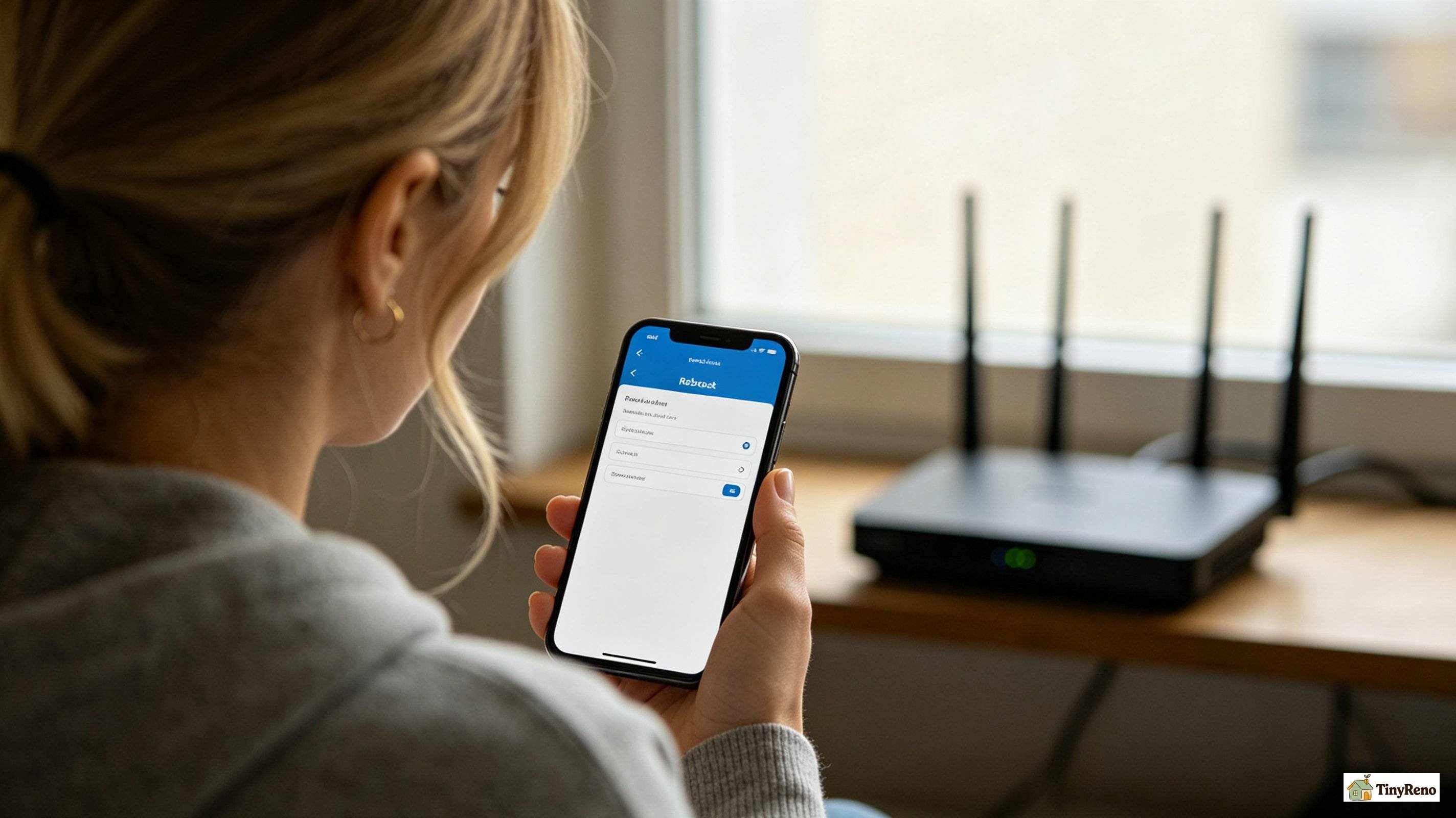
What works more often is restarting the router from its own admin page or app. Open a browser, type 192.168.0.1 or 192.168.1.1 (whichever is on the back of your router), log in with the admin password (also on the back or bottom of the router, sometimes on a sticker), and find the "reboot" or "restart" button. Some routers have a phone app that does the same thing — the Xfinity app, the Verizon My Fios app, the Spectrum app — and the restart button is usually on the home screen.
A software restart is different from unplugging because it tells the router to re-establish its connection to the ISP cleanly, instead of just losing power and hoping the ISP notices it came back. For "says WiFi connected but no internet" specifically, this can fix the issue when the router's session with the ISP has expired or gotten stuck, which happens more often in shared apartment buildings where the ISP's equipment is older.
Maya restarted hers through the Xfinity app. It still did not work. So we moved on.
Step 3: The Fix That Worked for Maya Was Changing the DNS Server
Here is the part I did not expect. After the router restart failed, I had Maya open a command prompt on her laptop and type a single command: `ipconfig /all`. On a Mac the command is `scutil --dns | head -20` or you can find it under System Settings → Network → WiFi → Details → DNS.
What we were looking for was the DNS server address. On most home networks the DNS server is something like 192.168.0.1 — the router itself — and the router forwards your requests to the ISP's DNS server. When the ISP's DNS server is slow, overloaded, or briefly down, every website looks like it's not loading, even though the connection to the router is perfectly fine. That is exactly what "says wifi connected but no internet" actually describes, in most cases I've seen.
The fix is to switch the device to a public DNS server. Google's is 8.8.8.8 and 8.8.4.4. Cloudflare's is 1.1.1.1 and 1.0.0.1. Either one is faster and more reliable than what most ISPs ship by default. You don't need to call anyone. You don't need to log into the router. You just change the DNS setting on the device.
On Windows: Settings → Network & internet → WiFi → your network → DNS server assignment → Edit → Manual. On a Mac: System Settings → Network → WiFi → Details → DNS → add the addresses. On a phone it's under WiFi → your network → Advanced or IP settings.
Maya switched to 1.1.1.1. Google loaded in under a second. She went quiet for a minute, then texted: "Why didn't I just do that yesterday."
I told her she wasn't alone. This is one of the most common causes of the connected-but-nothing-loads symptom that I have hit.
Step 4: Forget the Network and Reconnect If DNS Didn't Fix It
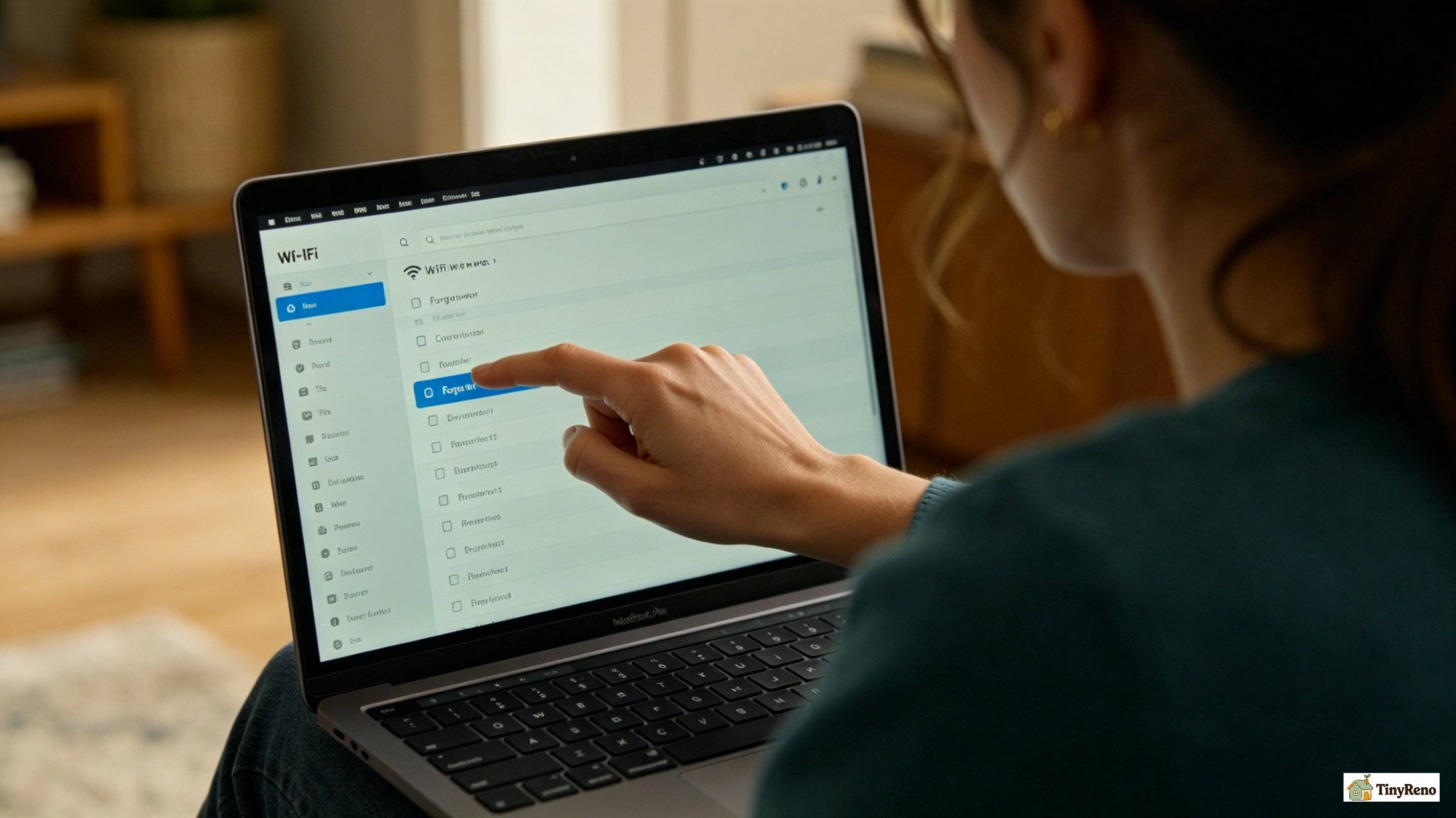
Sometimes the WiFi password stored on the device gets out of sync with what the router is now broadcasting. This happens a lot in rental apartments because the landlord may have reset the router, or the network name or password may have changed, and the device is still trying to authenticate with the old credentials. The connection says "Connected" because the device is sending a password and the router is accepting it, but the session is corrupt at a layer below the visible connection status.
The fix is to forget the network and reconnect. On every phone and laptop the menu is different, but it always exists. On iPhone: Settings → WiFi → tap the (i) next to your network → Forget This Network → reconnect and enter the password. On Android: Settings → Network & internet → WiFi → your network → Forget. On Mac: System Settings → Network → WiFi → your network → minus button. On Windows: Settings → Network & internet → WiFi → your network → Forget.
While you are at it, also try turning WiFi off and back on at the device level. It is a different reset than forgetting the network — it clears any half-open connections that the OS may be holding onto. After both of those, try loading a page again.
Step 5: Run a Ping Test to Confirm What Is and Isn't Working

This is the diagnostic step. By the time you reach it, you've restarted the router and the device, you've changed DNS, you've forgotten the network, and "says wifi connected but no internet" still won't go away. Now you want to know exactly where the problem is, because the next step depends on it.
Open a command prompt (or Terminal on Mac). Type `ping 192.168.0.1` (or whatever the router address is — usually 192.168.0.1 or 192.168.1.1). If you get replies, your device can reach the router. If you get "Request timed out," your device cannot even reach the router — the problem is local, between your laptop and the WiFi, and the rest of the steps below won't help.
If the first ping works, try `ping 8.8.8.8`. That is Google's public DNS server, a number that any internet-connected device should be able to reach. If you get replies from 8.8.8.8, your device can reach the open internet and the problem is probably with DNS (back to step 3) or with the browser itself. If 8.8.8.8 times out, your device can reach the router but cannot get past it to the internet, which usually means the router's session with the ISP is broken, and a software router restart (step 2) is the right move again.
This test takes about a minute and saves you from guessing.
Step 6: One Thing to Skip — Buying a New Router
I want to be direct about this. When the connected-but-nothing-loads symptom hit Maya, her first instinct — and the instinct of every renter I have talked through this — was to assume the router was bad and that she needed a new one. The router in her apartment was provided by her landlord through Xfinity, and she thought maybe she should just buy her own.
She didn't need one. The DNS fix took ninety seconds.
A new router only helps if the existing one is genuinely failing — dropping connections, overheating, freezing, randomly rebooting. If the lights look healthy and the WiFi icon shows full bars on every device, the router is doing its job. The problem is somewhere else.
If you're renting and the router belongs to the landlord or the ISP, do not replace it. Call the ISP first. If the router is yours, and it's more than five years old, and you've ruled out everything else, then a replacement makes sense. But the connected-but-nothing-loads symptom by itself is almost never a router hardware problem.
What Worked, and What I'd Do Differently Next Time
By the end of that morning Maya's internet was working. The fix was a DNS change. The total time was about twenty minutes, most of it spent on the phone with me walking through the steps. The cost was zero.
What I'd do differently next time, if it happened in my own apartment, is skip the router restart and go straight to the DNS check. The reason is that for this specific problem — "says wifi connected but no internet" with a healthy router — DNS is the cause more often than anything else in my experience. It is also the cheapest fix and the one that does not require touching equipment that belongs to someone else.
The other thing I'd do is check the router lights more carefully the first time around. Maya had looked at her router but hadn't actually read what each light meant. There is usually a small label on the back or a sticker that says what each LED indicates. Reading that takes ten seconds and saves you from guessing later.
If none of these steps work and the ping test shows the device cannot reach the router, the next move is to call the ISP. That is the part where you do need someone else's help.


Discussion (0)
Sign in to join the discussion